Follow Me To Share Thoughts, Knowledge,Views in all fields of Engineering , Management and much more
Monday, December 24, 2012
Sunday, October 28, 2012
CIM - An Intro
Computer integrated Manufacturing
Computer integrated
manufacturing(CIM) is a broad term covering all technologies and soft
automation used to manage the resources for cost effective production of
tangible goods.
- Integration – capital, human, technology and equipment
- CIM – which orchestrates the factors of production and its management.
Computer Aided Design
(CAD)
Computer Aided Manufacturing
(CAM)
Flexible
Manufacturing Systems
(FMS)
Computer Aided Process Planning
(CAPP)
- CIM is being projected as a panacea for Discrete manufacturing type of industry, which produces 40% of all goods.
Definition of CIM:
It describes integrated applications
of computers in manufacturing. A number of observers have attempted to refine
its meaning:
One needs to think of CIM as a computer system in which the peripherals, instead of being
printers, plotters, terminals and memory
disks are robots, machine tools and other processing equipment. It is a little
noisier and a little messier, but it’s basically a computer system.
-
Joel Goldhar, Dean, Illinois Institute of Technology
-
CIM
is a management philosophy, not a
turnkey computer product. It is a philosophy crucial to the survival of most
manufacturers because it provides the levels of product design and production
control and shop flexibility to compete in future domestic and international markets.
- Dan Appleton, President, DACOM, Inc.
CIM is an opportunity for realigning your
two most fundamental resources: people and technology. CIM is a lot more than
the integration of mechanical, electrical, and even informational systems. It’s
an understanding of the new way to
manage.
-
Charles Savage, president, Savage Associates
-
CIM
is nothing but a data management and
networking problem.
-
Jack Conaway, CIM marketing manager, DEC
The preceding comments on CIM have
different emphases (as highlighted).
An attempt to define CIM is analogous
to a group of blind persons trying to describe an elephant by touching it.
“CIM is the integration of the total
manufacturing enterprise through the use of integrated systems and data
communications coupled with new managerial philosophies that improve
organizational and personnel efficiency.”
- Shrensker, Computer Automated Systems
Association of the Society of Manufacturing Engineers (CASA/SME)
Thursday, October 25, 2012
How to change the Layout/ Text Wrapping of an Image/Photo/Picture in MS Word 2007 / 2003
Lot
of people’s would have come across with the problem on how to move an image anywhere
in a MS Word page.
As you could see the
below figure depicts on how the image is actually stated with the words “In Line with Text” when the image is
being right clicked.
This is the default
setting of the image. This makes the image to move only along the text and
could not be freely moved as you wish.
Examples:
You could place the image on the right side and want
your text on the other half side just how you see now
You could place the
image on the left side and want your text on the other half side just how you
see now.
Here
It Is How To Do:
If
you are working on MS word 2007:
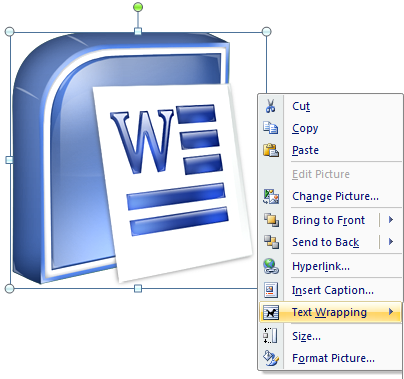
2. Once you right click the image you can see “Text Wrapping”
3. Click the “Text Wrapping”. A popup menu will appear displaying what kind of text wrapping you need for your image.
4. Click “Through” command

5. That’s it. Your image is now ready to be placed on the left, right, middle or anywhere on the page.
If
you are working on MS word 2003:
1. Right click on the image. You will notice that there will be no “Text Wrapping” command. Instead you can see “Format Picture”. Click on the “Format Picture” command.
2. A new popup menu will open in which it
consists of many tabs such as “Colors and
Lines, Size, Layout, Picture, All Text”. Click the “Layout” Tab.
3. As you could see from the below image,
after clicking the “Layout” Tab,
various commands for “Text wrapping”
will be displayed. In order to find out the “Through”
command click on the “Advanced”
button.
4. Another new popup Menu will be displayed
showing advanced options of “Text
wrapping” methods. Here you can find the “Through” command. Click on the “Through”
command.
5. Finally click the “OK” buttons on the two popup menus and there you go with your
image being placed anywhere on the page.
Subscribe to:
Posts (Atom)